google analytics

Friday, July 18, 2008

Easy dll using in Visual Studio

Hello again

Today I will show how to use a .dll  file using Visual Studio. dll is nothing but the a complied managed code by .NET CLR (at least for this tutorial).

what I did is just wrote a simple class "Employee" in a new project named "EmployeeInformation". It has one property and a method jest to show that how to build a dll of a class and use it in another project.

Now i have build the class by right clicking over the project named "EmployeeInformation" and pressing build, For me a dll has been generated in "C:\Users\MD.Tanvir Anowar\Documents\Visual Studio 2008\Projects\RefTest\EmployeeInformation\bin\Debug\" directory named "EmployeeInformation.dll" you may found it in your Output panel at the bellow of VS after build the project.

Now I have to let the dll know by my main project "RefTest", to do this i have to right click on my "RefTest" project and Click over Add Reference .

Now i have to browse and select the "EmployeeInformation.dll"
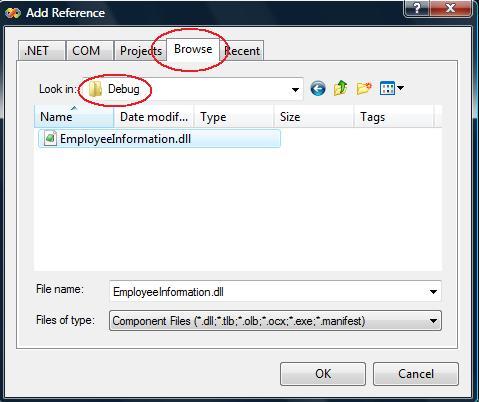
to user the dll now we have to instantiate the class in our main porject's class by typing:

EmployeeInformation.Employee employee = new EmployeeInformation.Employee();

now in employee object we will get the our desire property of the class as following
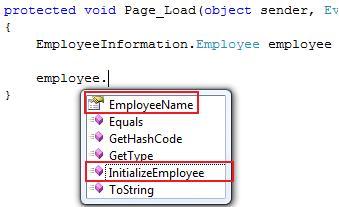
Thank you.

Sunday, July 13, 2008

Simple multiple projects add to Visual Studio

Hello all

Today I will explain how to add multiple project in Visual Studio .(That could be use for n-tier architecture or for other purpose). In .NET or in any language its wanted to fragment individual module of a system should have to be separated. In .NET we do this by adding multiple project in a single solution.

First open a new project ( in the example I have used new website named Emp ).

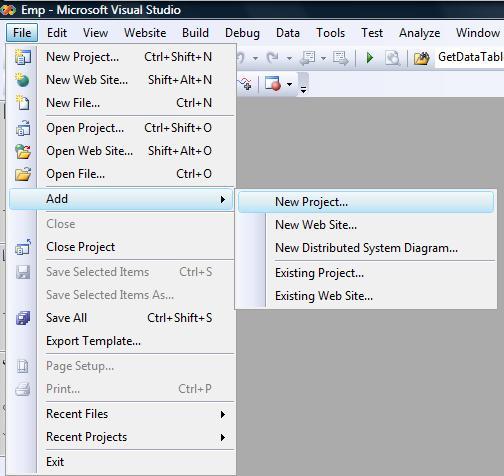
now add a new project from File > Add > New Project ( which will be a layer of Emp Website)

and then select Windows > > Class Library and give a name in the example I have named "DataAccessLayer".

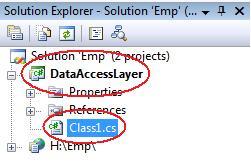
The initial task has been completed. Now in you solution explorer you will find new project named  "DataAccessLayer" and a default class named Class1.cs which you can rename according to your naming convention.

Now the most vital thing to do is let our main website "Emp" be referenced with the "DataAccessLayer" project ,otherwise we will not be able to use the resource of "DataAccessLayer" in "Emp"  !

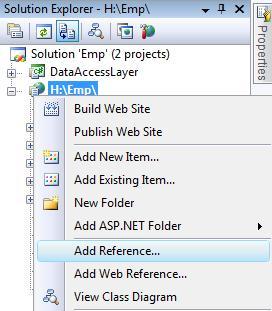
To do that we have to select out website "Emp" and right click on it after that we have to select Add Reference .

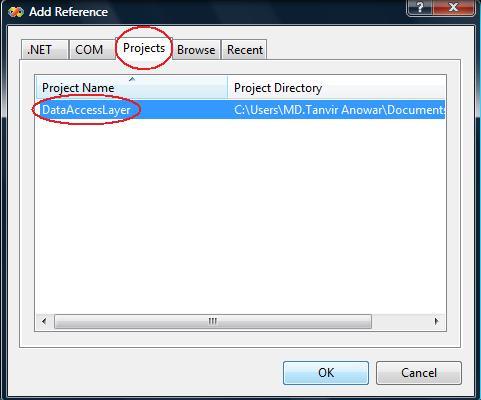
After a short time a window will came named Add Reference, from there we have to select the Project tab and let select the desired project for us its "DataAccessLayer" then click ok.

the task is done now we will be able to use the "DataAccessLayer" project's resource from our "Emp" website .

There is little additional task to do ..

We have to define the name of the project                  

"using DataAccessLayer;"  at the top of the classes which will use the resource of the "DataAccessLayer" as following.

that's all for today

Bye 

Saturday, July 12, 2008

Simple XML parsing with XPath

Hello again. Today i will talk about how to purse XML simply with .NET's XPath features.We know XML now days gets very important thing for transferring or what ever. I will show how simply we can Purse a XML file. Suppose we have a XML file named "Sample.xml" and the structure of that XML file is as bellow:
   1:  <?xml version="1.0" encoding="utf-8" ?>
   2:  <items>
   3:    <item>
   4:      <name>Tanvir</name>
   5:      <id>03-04304-3</id>
   6:    </item>
   7:    <item>
   8:      <name>Anowar</name>
   9:      <id>04-04304-2</id>
  10:    </item>
  11:  </items>
now open a Default.aspx page and import the sub class Xml,and Xml.XPath by writing as bellow:
   1:  using System.Xml;
   2:  using System.Xml.XPath;
Now making a XPathDocument document we can iterate our queries as given in nav.Select("/items/item/name") . here /items/item/name is our query ,where Items is the root node . item is the child node and name is our desired node which is going to be explored.
The following code is in C#.NET for exploring XML node with XPath.
 XPathDocument xmlDoc = new XPathDocument(MapPath("Sample.xml"));
 XPathNavigator nav = xmlDoc.CreateNavigator();
 XPathNodeIterator iterate = nav.Select("/items/item/name");
 while(iterate.MoveNext())
 { 
    Response.Write(iterate.Current.Name); // print the node name
    Response.Write("&nbsp");
    Response.Write(iterate.Current.Value); // print the value
    Response.Write("<br />"); 
  }